
Introduction: Why Save Pinterest Boards and Pins
Pinterest has become a home for visual ideas — from travel inspiration and recipes to design projects and fashion boards. Many users want to save these collections for offline use or backup, but Pinterest doesn’t offer a built-in feature for downloading entire boards or individual pins.
Fortunately, with modern tools like Savepin, you can easily download Pinterest videos, images, and even complete boards for future reference. If you’re looking for a quick and safe way to keep your inspiration offline, this step-by-step guide will show you exactly how to do it.
Step 1: Get Started with Savepin
Before you begin, click here to open Savepin’s web platform. This tool was created specifically to simplify saving Pinterest content in high quality.
You don’t need to create an account or provide personal details — simply open the page, paste a Pinterest link, and Savepin will process it automatically. The service works directly in your browser, but Android users can also take advantage of the mobile version for greater convenience.
Step 2: Copy the Link from Pinterest
Open your Pinterest app on Android or visit Pinterest in your browser. Navigate to the pin or board you want to save.
- Tap the Share button.
- Choose Copy link from the available options.
Once the link is copied, it’s ready to paste into Savepin. This step takes just a few seconds and works for any type of Pinterest content — photos, videos, or entire boards.
Step 3: Paste the Link into Savepin
Go back to the Savepin interface. You’ll see a single input field where you can paste your copied link. After inserting it, tap Download.
Within moments, the app will generate a preview of the content and start processing it. You can then select your desired resolution (for videos) or download multiple images from a board. Savepin’s optimized backend ensures everything is delivered in HD quality, even on slower connections.
Step 4: Save to Your Device
Once processing is complete, you’ll see the final download button. Tap it, and the file will be instantly saved to your phone or computer.
If you’re using the mobile version, files appear in your gallery automatically. On desktop, downloads are stored in your browser’s default folder. Savepin keeps everything fast, simple, and ad-free — no extra software or plugins required.
Step 5: Organize Your Saved Boards and Pins
Now that your content is saved, it’s time to organize it. Pinterest pins often serve as visual mood boards or creative references, so it helps to group them locally:
- Create folders by theme (travel, fashion, DIY, etc.).
- Rename files for easy search.
- If you’re a designer or marketer, import them into your project folders for inspiration.
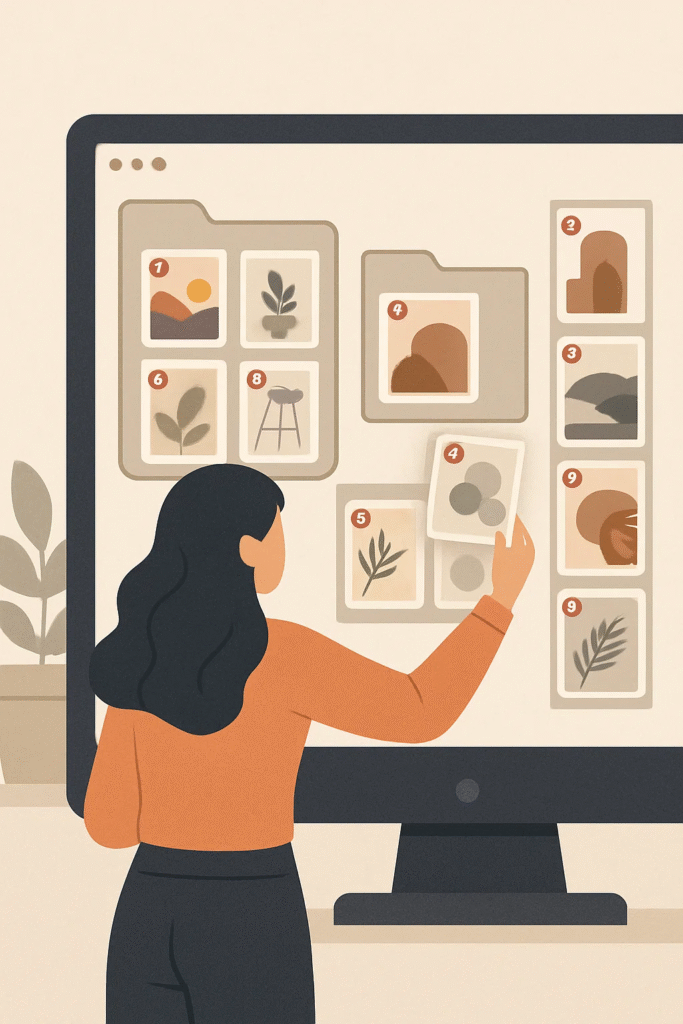
This method keeps your creative library accessible even without an internet connection.
Why Savepin Is the Best Tool for the Job
There are many Pinterest downloaders online, but Savepin stands out because of its simplicity, reliability, and privacy. Here’s why:
- HD Quality: All media retains its original clarity.
- Fast Processing: Videos and boards download in seconds.
- No Watermarks: Clean results for personal or professional use.
- Ad-Free Interface: No pop-ups or confusing redirects.
- Cross-Platform Access: Works both on desktop and Android devices.
These features make Savepin the go-to solution for anyone who regularly collects Pinterest inspiration.
Safety and Privacy First
Savepin is designed with user privacy in mind. The service does not store your links, personal data, or downloaded content. All communication between your device and the server is encrypted, ensuring safe and private downloads.
In a world full of copycat downloaders and ad-filled tools, this level of security makes Savepin a trusted choice among creators and everyday users alike.
Troubleshooting: Common Questions
Q: Can I save private Pinterest boards?
No, you can only download public content visible to everyone.
Q: Does Savepin work for images as well as videos?
Yes, it supports both — including full image boards.
Q: Is the app free?
Absolutely. Savepin offers all core features without hidden charges.
Conclusion
Saving Pinterest boards and pins has never been easier. With Savepin, you can preserve your favorite visuals, videos, and ideas in just a few clicks — securely and in the best quality.
If you’re ready to build your offline collection, with Savepin, your inspiration will be safely stored for anytime access.